

Can the iPad Pro replace your laptop? Notes from the field

I’m not entirely proud of my current status as Klick’s most frequent traveler, on track this year for about 140 flights. It’s a very back-handed compliment, in a way, but it also comes with the territory of my job. Travel doesn’t bother me at all, but that doesn’t mean I can’t constantly find ways to make it a little easier. I’m always on the lookout particularly for ways to lighten my very physical load, particularly when it comes to reducing the amount of technology I carry with me.
I’m an Apple guy — a fanboï from way back in the dark days — so it’s probably no surprise that my bag is home to their latest and greatest. Until Friday, that included a MacBook Air, iPad Mini, iPhone 6, and a rogue Amazon Paperwhite Kindle that’s a little easier on the eyes. None of those are particularly heavy on their own, but all of them combined starts to really add up when you’re rushing between flights.
I’m also growing very tired of charging batteries. My bedside table looks like some bizarre form of life support hospital equipment, bristling with charging cables and sleeping slabs of glass. Add the Apple Watch into the picture and I spend a fair bit of time hunting for plugs in every hotel I stay in (pro tip: there’s often a USB port on the TV that will charge devices!).
So I was curious when Apple announced the iPad Pro. It’s obviously not going to replace my laptop for every day use, but could it replace it when I’m on the road? My mobile computing requirements:
- We’re a Google Apps company, so can I easily access my email, calendar, and shared docs in Drive?
- I spend most of those days in meetings with clients, often doing sales calls and Keynote presentations. Can I present existing decks easily?
- I often need to modify existing Keynote decks and sometimes author entirely new ones. Can I do that easily enough, including all of our standard Klick fonts?
- We work on a lot of Microsoft Office documents with our clients, and even internally due to Google’s Docs app failing to handle any elaborate formatting. How easy would it be to edit them, especially when they live in Google Drive?
- Would the Bluetooth keyboard support feel like a bad afterthought or a really well integrated part of the iOS experience?
I figured it was a bad idea to try this on the road for the first time, so I’ve spent most of my weekend trying all of the above to make sure I know how to do it before I’m in the wild (though I’ll bring my laptop for the first few trips anyway just in case). Here’s what I’ve discovered so far — add your questions below and I’ll answer them!
Which iPad Pro and accessories?
That was an easy decision because I need LTE support, which currently means the 128GB WiFi+ Cellular model. Apple might add LTE to the lower end models later, but if you’re out on the road then that’s what you’re getting.
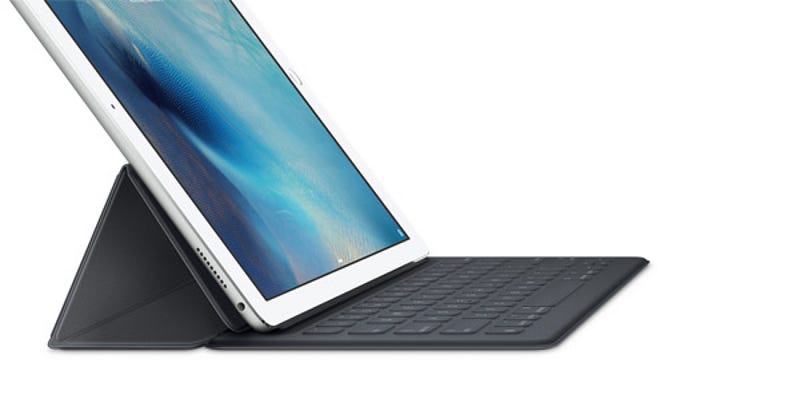
Right now Apple is also sold out of all the accessories, so I can’t comment on the somewhat controversial Smart Keyboard cover or the Pencil. I tried them briefly at an Apple Store and I really liked them both, but I’ll have to update when I get them. In the meantime, I’m using it with an Apple Bluetooth Keyboard, which seems to work perfectly. I’ll actually be a little disappointed, in a way, when the Smart Keyboard arrives because it’s missing all the function keys (screen brightness, volume, iTunes controls) that my Bluetooth keyboard has and that are all supported by iOS.
The hardware
It’s … big. It’s bigger than you think. It’s also much lighter than I thought it would be. Any awkwardness in holding it has more to do with size than it does with weight — I find myself less inclined to pick it up than I did with my Mini — but not because of tiredness so much as leverage and balance. I suppose that would be less of a factor if it was lighter, but at 1.59 pounds it’s over a pound lighter than the MacBook Air (2.96 pounds). The screen is beautiful and, at 2732x2048 resolution it’s way higher resolution than my non-Retina MacBook Air’s 1440x900.
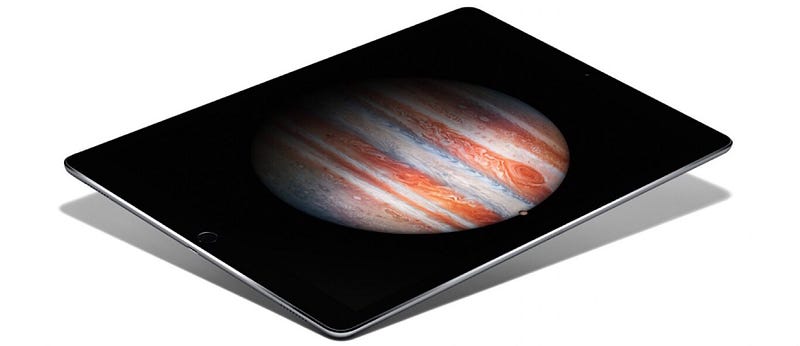
Apple put four speakers on the corners of the Pro, machined directly into the housing. They optimize for landscape and portrait modes, so you’ll always get the best possible sound. It’s the loudest iOS devices I’ve ever used, easily able to fill a (quiet) room with music.
Most surprising hardware observation so far: it takes a very, very, very long time to charge. The batteries are huge — it’s basically batteries with a screen stuck to the front — but a full charge can take over four hours! (I’m not the only one with this observation). I’ve read that the 12W power supply Apple ships with the Pro just can’t keep up. Maybe so, but four hours for a charge is extreme. On the flip side, I used it for hours and hours today and the battery was only down to 50%, so I guess you can’t have everything.
Keyboard support
Assuming that keyboard support is the same in iOS 9 regardless of how it’s connected (Bluetooth vs. the Pro’s built-in hardware connector for the Smart Keyboard), the best I can say is that it’s … inconsistent. Some developers have done a great job, others are mediocre, haven’t done anything at all.
Quick tip: hold down the command key (⌘) in apps with keyboard support to see an overlay with relevant shortcuts:
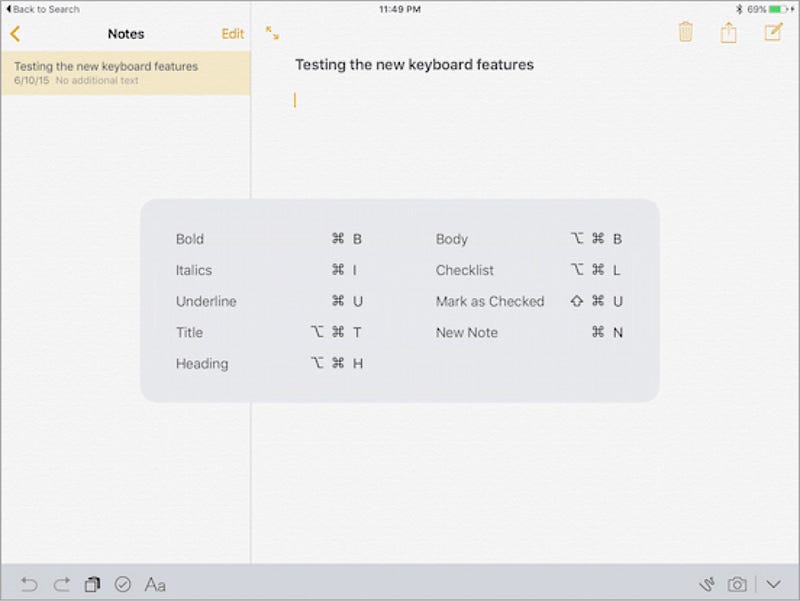
It’s also a good litmus test as to whether the developers in an app have built in keyboard support or are just relying on the OS to handle it. I should mention that I’m a heavy keyboard shortcut user on the Mac and can go for hours without touching the trackpad, so my comments definitely come from that end of the keyboard spectrum. Somewhat random observations so far:
- App switcher: ⌘-tab brings up a very MacOS X-style app switcher to flip between recently open apps (⌘-shift-tab cycles backwards). It’s odd that you can’t tap on the on-screen icons when the app switcher is open, like you can click on them on a Mac. The switcher is also limited to the last 10 apps you’ve used, so anything open past that isn’t accessible through there. I’d love to see a future iOS update to allow for app switcher plugins the same way iOS 8 introduced keyboard replacements. Then maybe we could see Alfred come to the rescue!
- Home and search: there are two system level shortcuts supported from anywhere: ⌘-shift-h will take you to your home screen and ⌘-space will take you to the home screen’s search. You can use the latter as an extended app switcher in that you can hit the shortcut, wait for the search to open, then type an app name.
- Eject! I accidentally discovered an odd third system-wide keyboard shortcut. If your external keyboard sports an Eject button, which Apple Bluetooth keyboards do for entirely anachronistic feeling reasons, it will toggle the onscreen keyboard display.
- Home/search screen lacks keyboard support: there doesn’t seem to be any support on the home screen for things like paging through screens of apps or selecting apps to launch. Likewise, you can type in the home screen search box but you can’t arrow key down into the results. I’d love something like ⌘-left and ⌘-right for paging and then some highlight on effect on icons that you could move around with the arrow keys to select an app to launch.
- Some apps feel broken: Medium is a good example, unfortunately. Backgrounding the app and coming back in to keep writing seems to often break the external keyboard support. Typing doesn’t do anything except sometimes select words or paragraphs at a time. I imagine it will take a while for devs to catch up and provide support (if they ever do), though hopefully more popular apps with bigger teams will add proper support sooner.
WWSD?
Tim Cook’s Apple may never escape the What Would Steve Think? question. I don’t think it’s a fair one — Apple is way more financially successful under Tim — but it’s not unreasonable to look back at their history and see what Apple of a few years ago would have thought of Apple of today. The whole experience of the iPad Pro brings to mind two Steve Jobs keynote moments, the first from 2007 and the second from 2010:
Steve Jobs: “Who wants a stylus?” - Apple - Steve Jobs at Macworld 2007 in San Francisco
_Steve Jobs presents the first iPhone at “Macword 2007” in San Francisco, but he doesn’t like the stylus…_youtu.be
Streve Jobs on Touch Screen PCs
_From an October 2010 Macbook Pro Event. Steve Jobs on Touchscreen PCs. This is why Windows 8 is in serious trouble and…_youtu.be
Tongue in cheek YouTube linkage aside, the world changes. Sometimes (often?) Apple is the force changing the world. Sometimes they aren’t and then they have to play catch-up (or even leapfrog). I totally agree about not using styluses on phones (and about calling them stylii), and I’m so far unconvinced about the touchscreen “PC” experience of an iPad Pro and a keyboard for the same reasons Steve lists above. On my Mac I only have to reach for the trackpad immediately to my right when I can’t do something on the keyboard, but iOS doesn’t support pointing devices (yet?). I’ll check back in on this when I’ve had more time to experiment with the Smart Keyboard and Pencil.
What’s the work experience?
The biggest question on most people’s mind about Apple’s biggest iPad is about whether it can replace their laptops. So far, I would say that it could, with some limitations. I’ve had a few things that are harder than on an MacBook, but they’re things I don’t often have to do. Let’s go back to the list from the start:
- Google Apps: I can’t say I’m the world’s biggest Google Apps fan in the first place. There are things I really like about them, particularly the collaboration capabilities it gives my team, but there are lots of things that I find frustrating. The good news is that they’re no more frustrating on iOS! The collaboration stuff works just as well in the Google Docs app as it does on the web.
- Keynote: Editing existing decks works pretty well. I was able to open even some pretty big decks and edit them without problems, though it wasn’t anything too complex. It will take longer to really understand how useful it is.
- Adding fonts to iOS: this was a big concern from past Keynote use. We’ve got some pretty strict brand guidelines for Klick, including the fonts we use in our presentation templates. How easy would it be to add them to my iPad? Turns out it’s actually not so tough thanks to iOS 9’s support for Profiles. Using an app called AnyFont, you can package up custom fonts (and even zip files of multiple fonts) and then install them as a Profile. It worked reasonably well, though I found the installation process broke when I tried to install more than about ten fonts at the same time.
- Microsoft Office Apps: an $11/month Office365 subscription gave me access to the full native iOS apps (you can download them and read/view docs without a subscription but you can’t edit until you pay). I thought at first that it would be locked into only working with files off OneDrive, but it turns out that iOS 9’s solid cloud drive support saved the day.
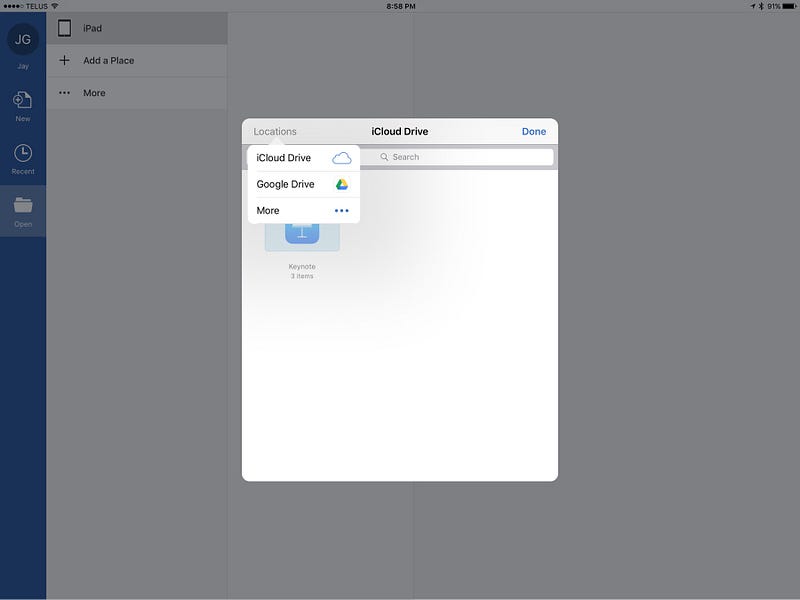
In any of the Office docs (Word is above), tap on the “Open” sidebar item, then on the “… More” link. The popover above will appear, defaulting to iCloud Drive. Tap on “Locations” and you may already see “Google Drive”. If not, tap on the “More …” item and switch Drive on (if it still isn’t there, you probably don’t have the app installed). The best part? The documents you open from Google Drive in Office automatically save back to Drive as you work on them.
The VNC option
It’s a real nuclear option, but should you hit something you really can’t do on iOS you can always VNC back to your laptop. VNC stands for “Virtual Network Computer”, an older standard that enables one computer to remotely control another computer. Luckily for all of us, there are a number of iOS apps for VNCing into another computer. Seems the best of the bunch is Remoter VNC, which you can buy in the App Store for $1.19.
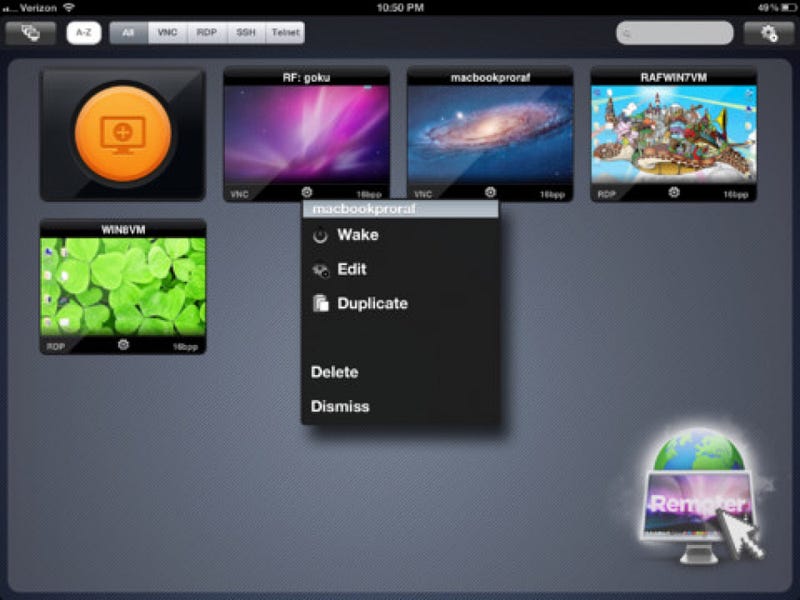
The mouse control is particularly useful. I needed to download a PDF from an internal website that was doing some wacky frontend URL re-writing that prevented mobile Safari from grabbing it. I was able to Remoter VNC to my Mac, download the file to Google Drive, then open it in the Drive app on my iPad with no problems. It’s not an ideal solution, especially if you’re on a slow connection, but it’s not a bad backup.
Initial final thoughts
The iPad Pro is Apple at its best. It’s fast, beautiful, responsive, lightweight, and sounds fantastic. Every iPad app you use today will look better on it, be faster, and sound better. Will it make you more productive? Jury is still out, but I tend to think that bigger screens and more speed usually do. I enjoy the challenge of making it work, but I’m not entirely convinced that it should feel like a challenge. The next week or two will tell if it stops being one.
Subscribe to JayGoldman.com
Get an email when I publish. Pick a stream — or everything. Unsubscribe anytime.